If you’ve ever wanted to texture a 3D model with lifelike metal, fabric, or wood in minutes, Smart Materials are your new best friend.
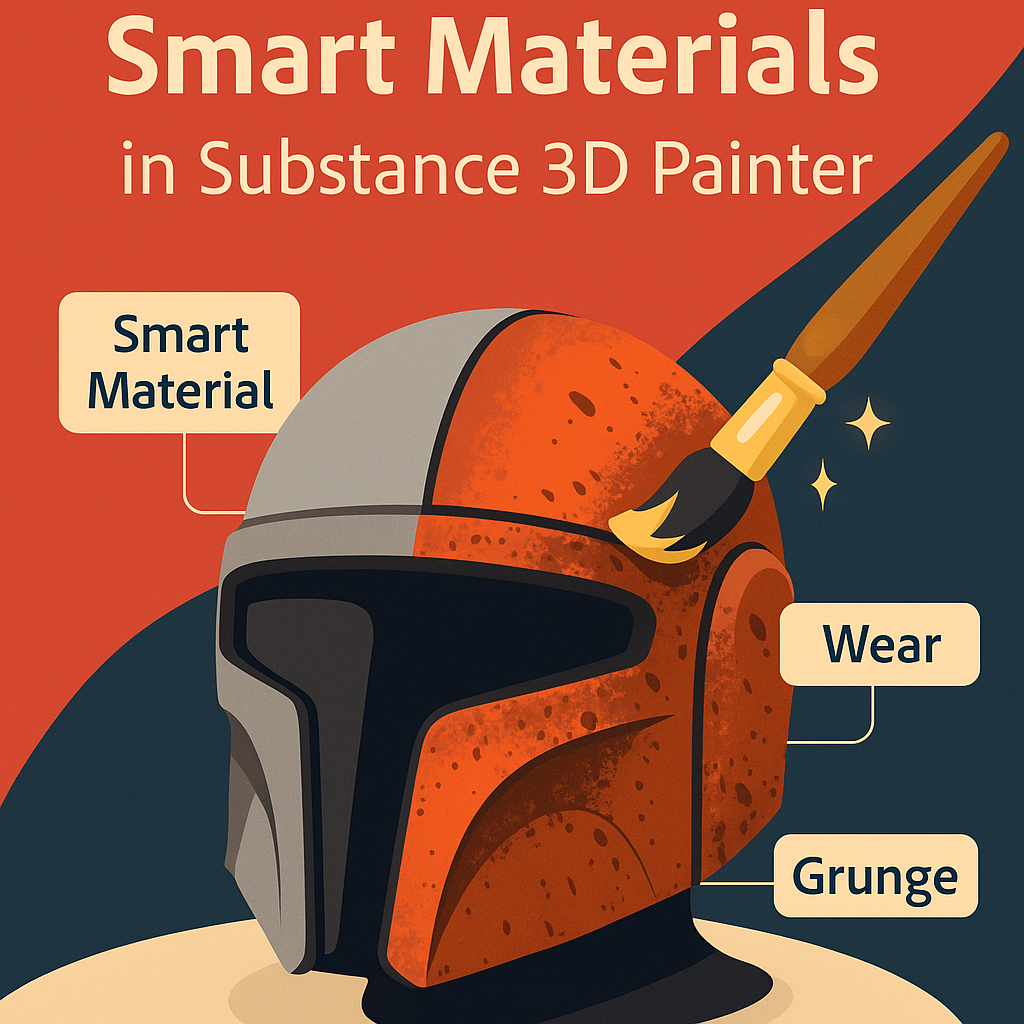
In Adobe Substance 3D Painter, Smart Materials let you apply complex, layered, and procedural surface effects that automatically adapt to your 3D model’s shape, lighting, and baked maps.
Whether you’re working on a product render, a game asset, or a film prop, Smart Materials give you realism instantly — no manual layering required.
👉 Try it yourself with a free trial of the Adobe Substance 3D Collection and experience the workflow that top studios rely on.
🧱 Step 1: Start a New Project
- Launch Substance 3D Painter and click File → New.
- Import your 3D model (
.FBX,.OBJ, or.USD). - Select the PBR – Metallic Roughness template for the most common workflow.
- Check Compute Tangent Space Per Fragment for accurate normal rendering.
- Click OK to open your blank scene.
💡 Tip: Make sure you bake your model’s maps first. Go to Texture Set Settings → Bake Mesh Maps — this step ensures Smart Materials can detect edges, curvature, and dirt correctly.
🎨 Step 2: Open the Smart Materials Library
In the Assets panel, select Smart Materials.
You’ll see dozens of presets organized by material type — from Steel Painted to Fabric Worn to Plastic Glossy.
Each Smart Material is built using a stack of layers, masks, and generators that react dynamically to your model’s baked maps.
Think of them as intelligent Photoshop layers that “understand” 3D surfaces.
🧩 Step 3: Apply a Smart Material
- Drag a Smart Material directly onto your 3D model or the Layers panel.
- The entire material — base color, roughness, metallic, and normal detail — is applied instantly.
- Adjust the Material Scale and Projection settings if the texture looks stretched or repetitive.
- Click into each sub-layer to tweak color, wear, or edge intensity.
🎯 Pro Tip: Combine multiple Smart Materials in the same texture set (for instance, “Steel Painted” + “Dirt”) to achieve layered realism.
🧠 Step 4: Customize Masks and Generators
Every Smart Material comes with procedural masks that define where certain effects appear.
To modify them:
- Expand the Smart Material’s layer group.
- Right-click on a sublayer → Add Black Mask or Add Generator.
- Choose from popular generators like Metal Edge Wear, Dirt, or Dripping Rust.
- Fine-tune sliders to control edge contrast, dirt spread, or grunge intensity.
🧩 Combine procedural masks with hand-painted layers to add artistic control where needed.
🔄 Step 5: Save and Reuse Custom Smart Materials
Once you’ve perfected your look, right-click the material folder in the Layers panel → Create Smart Material.
It’ll be saved to your personal library for future use across projects.
💡 Pro Tip: Build your own reusable materials (like “Painted Plastic” or “Weathered Copper”) to speed up your texturing pipeline.
💾 Step 6: Export Your Textures
- Go to File → Export Textures.
- Choose your output template — PBR Metallic Roughness or Unreal Engine 5.
- Set resolution up to 8K for ultra-detailed textures.
- Click Export and Painter will generate all maps automatically.
🚀 Conclusion
Smart Materials are one of the most powerful features in Adobe Substance 3D Painter — they help you texture faster, smarter, and with photoreal results.
Instead of painting from scratch, you can focus on art direction and realism while Painter handles the technical side.
Ready to try it?
👉 Start a free trial of the Adobe Substance 3D Collection and see what Smart Materials can do for your next 3D project.
 SurfaceMentor