A perfectly clean model can look sterile — adding dust, dirt, and age brings life and realism to your 3D scenes. In Adobe Substance 3D Painter, you can achieve this easily using procedural masks, dirt generators, and color variation layers that simulate natural surface buildup over time.
In this tutorial, you’ll learn how to add dust, grime, and patina to any material — whether it’s metal, wood, or plastic — for a naturally aged appearance.
👉 Try it hands-on with a free trial of the Adobe Substance 3D Collection and give your 3D materials a realistic weathered finish.
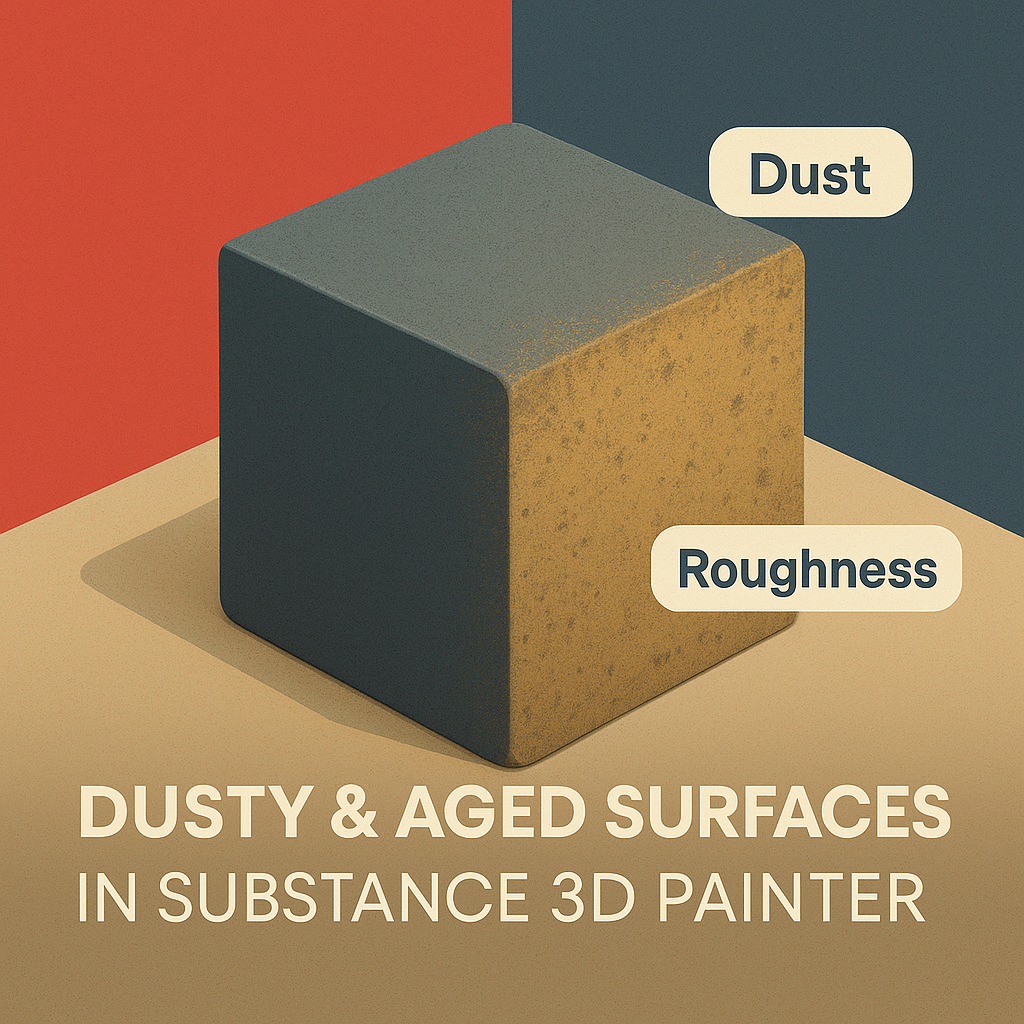
🧱 Step 1: Choose or Create a Base Material
- Open your model in Substance 3D Painter.
- Apply a Smart Material that fits your object type (e.g., Steel Painted, Wood Walnut, Plastic Clean).
- This base defines how light interacts before the aging and dust layers are added.
💡 Tip: Keep your base layer clean and balanced — subtle imperfections are easier to build up than remove later.
🎨 Step 2: Add a Dust Layer
- Create a new Fill Layer and name it “Dust.”
- Turn off Metallic and Height, leave Color and Roughness active.
- Choose a light beige or gray Base Color to represent surface dust.
- Add a Black Mask → Add Generator → Dirt.
- Adjust the generator settings:
- Balance: Controls dust coverage
- Contrast: Sharpens or softens edges
- AO Influence: Ensures dust collects in recessed areas
🎯 Pro Tip: Increase Grunge Amount to simulate uneven surface buildup.
🧩 Step 3: Blend Dust Naturally with Light Roughness
Dust isn’t opaque — it softens reflections.
- In your Dust layer, increase Roughness slightly (0.7–0.9).
- Lower Opacity to around 60%.
- Enable Color Variation using the HSL filter for realistic tone differences.
🧠 Workflow Tip: Add subtle noise or scratches to the dust mask to keep it from looking flat.
⚙️ Step 4: Add an Aging or Patina Layer
Aging often means oxidation, discoloration, or worn paint.
- Create another Fill Layer and name it “Aging.”
- Pick a desaturated brown or green hue for metal, or faded gray for paint.
- Add a Black Mask → Add Generator → Metal Edge Wear or Curvature.
- Lower Wear Level and Contrast for gentle aging — raise them for older, distressed looks.
💡 Pro Tip: Blend using Overlay or Multiply to tint existing materials without overpowering them.
💨 Step 5: Add Directional Dust (Optional)
For horizontal or outdoor surfaces, dust often settles directionally.
- Add another Fill Layer using the Dirt generator again.
- Set Projection → Planar and angle the projection slightly downward.
- This gives the illusion of dust falling naturally from above.
🎨 Bonus: Add soft painted brush strokes on top to define specific buildup zones.
💡 Step 6: Refine Lighting and Preview
- Go to Display Settings → Environment Map → Outdoor Dusty Light or Warm Studio.
- Adjust Environment Exposure to 0.5–1.0 for soft shadows.
- Enable Tone Mapping (ACES) to enhance warm tones and subtle color shifts.
💾 Step 7: Export Your Aged Texture
- Go to File → Export Textures.
- Choose PBR Metallic Roughness template.
- Export at 4K for detailed results or 2K for real-time rendering.
Use in Blender, Unreal Engine, or Adobe Stager for realistic aged assets.
✅ Conclusion
Adding dust and aging in Adobe Substance 3D Painter instantly increases realism and depth. With procedural generators and roughness control, you can give any model a story — from factory-fresh to antique.
👉 Start creating your own dusty, lived-in textures with the Adobe Substance 3D Collection free trial and explore what makes surfaces truly authentic.
 SurfaceMentor