Introduction
Leather is one of the most versatile and visually rich materials in 3D design — used in everything from footwear and car interiors to furniture and fashion. In Adobe Substance 3D Painter, you can craft ultra-realistic leather surfaces that capture the subtle texture, shine, and wear patterns of real hide.
This tutorial walks you through building convincing leather materials using Smart Materials, masks, and fine-tuned roughness and height variations.
👉 Follow along by starting your free trial of the Adobe Substance 3D Collection — it includes Painter, Designer, and Sampler for a complete material-creation workflow.
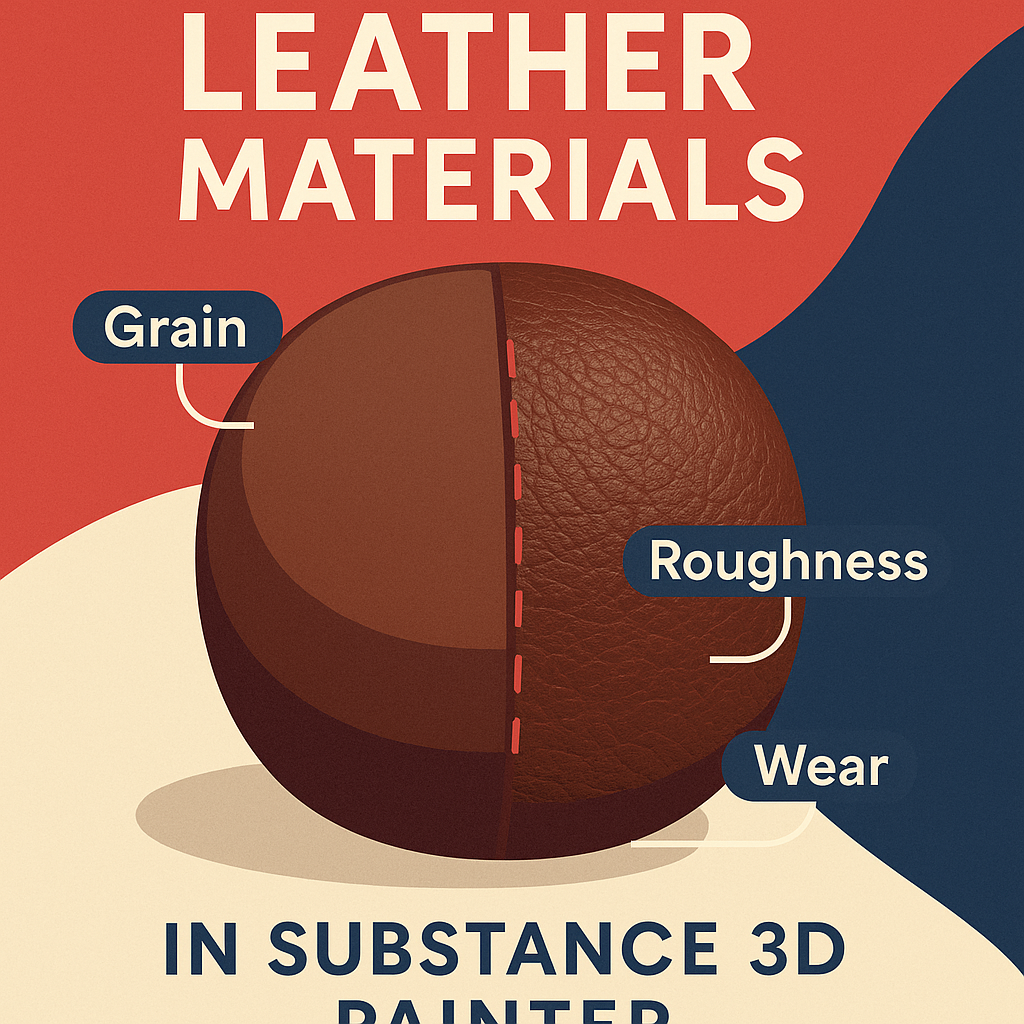
🧱 Step 1: Start with a Leather Smart Material
- Open Substance 3D Painter and load your 3D model.
- In the Assets → Smart Materials section, search for “Leather.”
- Apply a preset such as Leather Raw, Leather Polished, or Leather Bag.
- The Smart Material provides a procedural base with layered color, roughness, and height maps simulating pores and grain.
💡 Tip: The Leather Raw preset is perfect for rough textures, while Polished Leather is great for glossy, refined finishes.
🎨 Step 2: Adjust the Base Color and Grain
- Expand your Smart Material in the Layers panel.
- Select the Base Color Layer and tweak color tone and saturation to match your desired leather type (e.g., warm brown for vintage, deep black for luxury).
- Modify the Grain Scale under the Height channel to adjust the pore size. Smaller scales give a smoother leather; larger ones create coarser texture.
🎯 Pro Tip: Slightly lower the Height intensity for worn or flexible materials — this softens the grain and looks more natural.
🧩 Step 3: Add Wear and Crease Variation
Leather rarely looks perfect. To simulate natural wear:
- Add a new Fill Layer and disable all channels except Roughness.
- Mask it with a Grunge Dirt generator.
- Adjust Balance and Contrast until subtle patchy roughness appears.
- Add a second Fill Layer for Color with a slightly lighter tone and mask it with a Curvature generator — this simulates rubbed or stretched areas.
💡 Tip: Focus wear on edges, seat surfaces, or areas where the object bends.
🪶 Step 4: Add Surface Detailing
- Create a new Height-only Fill Layer.
- Use a Fine Leather Grain procedural texture (found in the Textures → Procedural section).
- Adjust Scale and Balance to match your material’s grain pattern.
- Lower Opacity to around 0.1–0.2 for subtle realism.
🎨 Optional: Add a Normal map of leather wrinkles or creases from a scanned texture for extra depth.
🌈 Step 5: Refine Roughness and Specular Highlights
Leather’s defining feature is its soft specular reflection.
- Focus on the Roughness channel — lower values (0.3–0.5) give a polished look, while higher values (0.6–0.8) simulate matte leather.
- Add a Roughness variation map using a Grunge texture to mimic oils or touch marks.
🧠 Pro Tip: Use Anchor Points to link your roughness variation mask to your color or height for a unified worn effect.
💡 Step 6: Light and Preview the Material
- Switch your Environment Map to Studio Warm Light or Soft Light HDRI under Display Settings.
- Rotate lighting to emphasize the surface’s micro-detail and sheen.
- Enable Post Effects → Tone Mapping → ACES for cinematic contrast.
Preview from multiple angles to ensure the highlights look natural.
💾 Step 7: Export and Use in Rendering Tools
- Go to File → Export Textures.
- Choose PBR Metallic Roughness template.
- Export in 4K resolution for high-end rendering or 2K for real-time assets.
Your realistic leather material is now ready for Blender, Unreal Engine, or Adobe Stager.
✅ Conclusion
Creating believable leather in Adobe Substance 3D Painter is all about micro-detail — subtle pores, slight shine variation, and worn edges. Once you master the balance between roughness and color, your digital leather will look ready to touch.
👉 Get started today with the Adobe Substance 3D Collection free trial and bring your materials to life with Painter and Designer.
 SurfaceMentor