Stone and concrete are foundational materials in architectural visualization, product design, and environment art. Whether you’re texturing a marble countertop, a concrete wall, or an ancient ruin, Adobe Substance 3D Painter gives you the procedural power to create realistic, weathered stone and concrete surfaces from scratch.
In this tutorial, you’ll learn how to combine Smart Materials, height maps, and procedural masks to achieve highly believable stone and concrete textures that react naturally to lighting and weathering.
👉 Follow along with a free trial of the Adobe Substance 3D Collection — it includes everything you need to master realistic texturing.
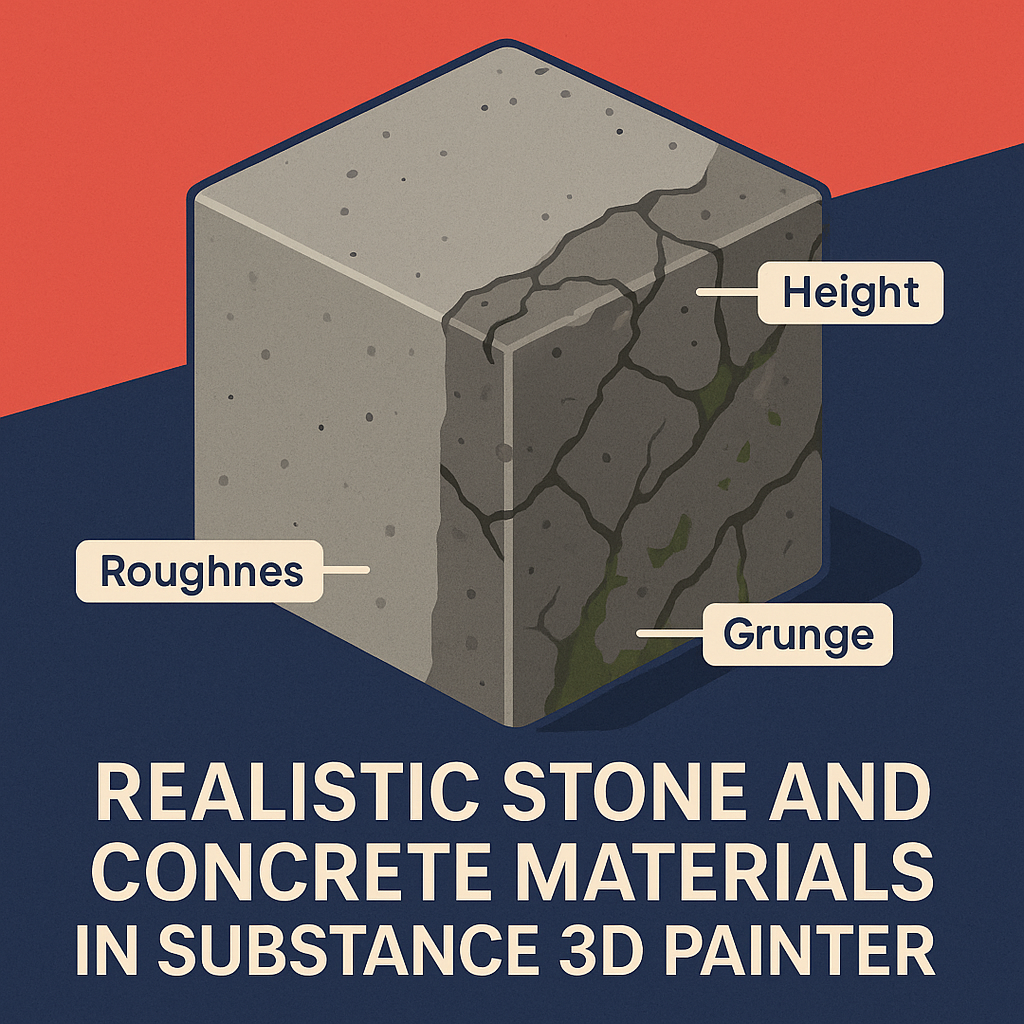
🧱 Step 1: Start with a Smart Material or Base Layer
- Launch Substance 3D Painter and import your model.
- In the Assets panel, search for Stone or Concrete under Smart Materials.
- Apply presets like Concrete Dirty, Stone Weathered, or Concrete Old Wall.
- These materials provide base layers with surface imperfections, dust, and micro cracks.
💡 Tip: For stylized looks, increase contrast and reduce grunge; for realism, keep the color variation subtle and natural.
⚙️ Step 2: Adjust the Base Color and Roughness
- Expand the Smart Material layers in the Layer Stack.
- Select the Base Color Fill Layer and tweak its hue and brightness to match your desired stone tone — gray for cement, beige for limestone, or dark blue-gray for granite.
- Modify the Roughness values to adjust the surface finish:
- Roughness 0.7–0.9 → matte, chalky concrete
- Roughness 0.4–0.6 → semi-polished stone
🎨 Pro Tip: Use the HSL Perceptive Filter for subtle tone adjustments across multiple layers.
🧩 Step 3: Add Surface Imperfections with Grunge Maps
- Add a new Fill Layer and disable Color and Metallic.
- Leave Roughness and Height enabled.
- Apply a Grunge Map such as Grunge Dirt Scratches or Grunge Rough Concrete as a mask.
- Adjust Balance and Contrast for irregular wear and tear.
💡 Pro Tip: Use multiple stacked grunge layers with low opacity to build complex, layered imperfections like stains or discoloration.
💥 Step 4: Create Cracks and Chips Using Height Information
- Add a Black Mask to your top Fill Layer.
- In the mask, add a Generator → Baked Lighting Environment or Curvature.
- Combine it with a Cracks procedural texture from the shelf.
- Increase the Height intensity slightly (+0.05 to +0.1).
- Blend using Overlay or Multiply to simulate chiseled or cracked edges.
🧠 Pro Tip: Invert the Height channel for deep cracks or cavities.
🌦️ Step 5: Add Dirt and Moss for Outdoor Surfaces
If your stone or concrete is exposed to nature:
- Add a Fill Layer with a dark green or brown color.
- Add a Black Mask → Generator → Dirt or Moisture Leaks.
- Adjust the Balance slider to control where dirt accumulates.
- Use a Paint Layer on top to hand-paint extra moss in crevices.
🎨 Bonus: Use a Blur Filter to soften moss edges for a more organic look.
💡 Step 6: Refine with Ambient Occlusion and Lighting
- Bake your AO (Ambient Occlusion) maps if you haven’t already.
- Under Display Settings, enable Shadows and Post Effects → Tone Mapping (ACES).
- Rotate the Environment Map to catch the subtle depth of your stone texture.
💡 Tip: Use a Studio Neutral HDRI for accurate material evaluation.
💾 Step 7: Export Your Material for Rendering
- Go to File → Export Textures.
- Use the PBR Metallic Roughness export template.
- Export at 4K resolution for high-end rendering or 2K for real-time use in Unreal Engine, Blender, or Stager.
✅ Conclusion
Creating realistic stone and concrete materials in Adobe Substance 3D Painter is about layering — balancing color, roughness, and height information to simulate real-world erosion and wear. Whether your goal is modern architecture or ancient ruins, Painter gives you all the tools you need.
👉 Start your Adobe Substance 3D Collection free trial today and build photoreal environments with total material control.
 SurfaceMentor