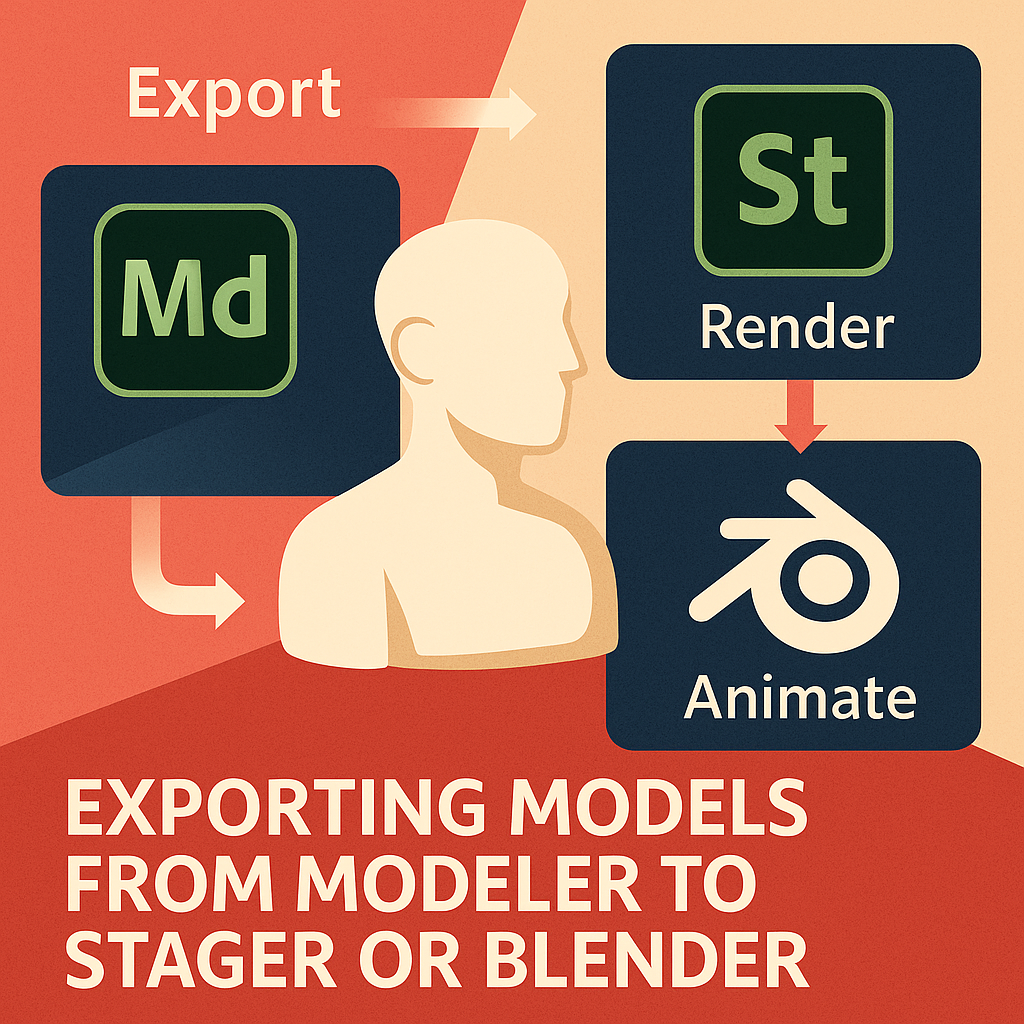
Once you’ve sculpted a model in Adobe Substance 3D Modeler, the next step is to bring it into a rendering or texturing environment — like Substance 3D Stager for photoreal visualization or Blender for animation and advanced shading.
The good news? Modeler’s export process is simple, flexible, and fully compatible with both Adobe’s ecosystem and external 3D tools. In this guide, we’ll cover how to export your models properly — preserving scale, materials, and layers for the best results in Stager or Blender.
👉 Start your 3D workflow with the Adobe Substance 3D Collection free trial — which includes Modeler, Painter, Designer, Sampler, and Stager.
🧠 Why Export from Modeler?
While Substance 3D Modeler is ideal for sculpting and form development, it’s not meant for texturing or final rendering. Exporting lets you:
- Render your models under realistic lighting in Substance 3D Stager.
- Animate or further refine them in Blender or other DCC tools.
- Apply materials and textures from Substance 3D Painter.
💡 Think of Modeler as your digital sculpting studio — and Stager or Blender as the photography studio where your finished piece comes to life.
🧱 Step 1: Prepare Your Model in Modeler
Before exporting, make sure your file is optimized:
- Clean Up Layers
- Merge layers that belong together (e.g., helmet and visor).
- Rename parts clearly for easy material assignment later.
- Smooth Surfaces
- Use the Smooth Tool to eliminate voxel roughness.
- Check for intersecting or floating geometry.
- Scale and Orientation
- Use Modeler’s Scene Scale Tool to set correct proportions.
- Align your model upright (Z-axis up for Blender and Stager).
💡 Pro Tip: Always save a backup .smodel version before exporting in case you need to tweak sculpted details later.
⚙️ Step 2: Choose the Right Export Format
Modeler supports three primary file formats for export:
| Format | Best For | Description |
|---|---|---|
| .USD (Universal Scene Description) | Adobe Stager | Preserves materials, hierarchy, and scaling for seamless rendering. |
| .FBX | Blender, Game Engines | Maintains mesh detail, transformations, and material slots. |
| .OBJ | Compatibility | A universal format for geometry transfer (simpler, but no materials). |
💡 Recommendation: Use USD for Stager and FBX for Blender — they retain the most metadata for a smooth transition.
🪄 Step 3: Export Settings
To export from Modeler:
- Go to File → Export Model.
- Choose Destination Format (
USD,FBX, orOBJ). - Select additional options:
- ✅ Preserve Layer Structure (for Painter or Blender material slots).
- ✅ Export Normals (for smooth shading).
- ✅ Export Scene Scale.
- Click Export and save to your desired folder.
🎯 Pro Tip: For large sculpts, enable Decimation to reduce polygon count while keeping overall form intact.
🖼️ Step 4: Import into Adobe Substance 3D Stager
Stager is the natural next step if you want high-end renders with Adobe’s lighting and material engine.
- Open Substance 3D Stager.
- Click File → Import → 3D Model.
- Select your .USD file exported from Modeler.
- Adjust Scale and Orientation if needed.
- Assign Materials or Smart Textures from Stager’s library or import from Painter.
💡 Workflow Example:
- Sculpt a product prototype in Modeler.
- Export as USD.
- Import into Stager, apply glass, metal, or plastic materials, and render under an HDR studio light.
🧩 Step 5: Import into Blender
For users working in Blender, the .FBX workflow gives the best balance of quality and control.
- Open Blender → Go to File → Import → FBX.
- Locate your exported file.
- Enable “Import Normals” in the import panel.
- Set Z-Up for correct orientation.
- Adjust Material Slots and apply shaders manually or via Substance 3D Plugin for Blender.
🎨 Pro Tip: After import, switch to Material Preview Mode in Blender to verify mesh smoothing and edge flow.
🧱 Step 6: Applying Materials and Lighting
In Stager:
- Use Smart Materials or drag-and-drop textures from Substance Assets.
- Adjust roughness, metalness, and normal intensity for realism.
- Set HDRI lighting from the Environment panel for natural reflections.
In Blender:
- Use the Principled BSDF Shader for PBR consistency.
- Connect Base Color, Roughness, Metallic, Normal, and AO maps exported from Painter.
- Add an HDRI via the World Shader Editor for photorealistic lighting.
💡 Workflow Tip: Substance and Blender share a PBR model — textures exported from Painter plug directly into Blender’s shader graph.
📦 Step 7: Optimize and Render
- In Stager, enable Path Tracing for cinematic quality renders.
- In Blender, use Cycles or Eevee depending on your performance needs.
- Check for proper material scaling and UV alignment.
- Add final camera framing, depth of field, and output your render.
🎯 Pro Tip: Save camera presets and HDRI setups in Stager to reuse across multiple imported models.
✅ Conclusion
Exporting from Adobe Substance 3D Modeler to Stager or Blender bridges the gap between creative sculpting and professional rendering. With the right export format, clean geometry, and proper setup, your models can transition effortlessly between apps — ready for material painting, lighting, and photoreal output.
👉 Start your full 3D pipeline with the Adobe Substance 3D Collection free trial and experience seamless integration between Modeler, Painter, and Stager.
 SurfaceMentor