Introduction
Building a full 3D scene — from modeling to texturing and final rendering — used to require multiple disconnected tools and complex workflows. With the Adobe Substance 3D Collection, that process becomes streamlined, efficient, and surprisingly intuitive.
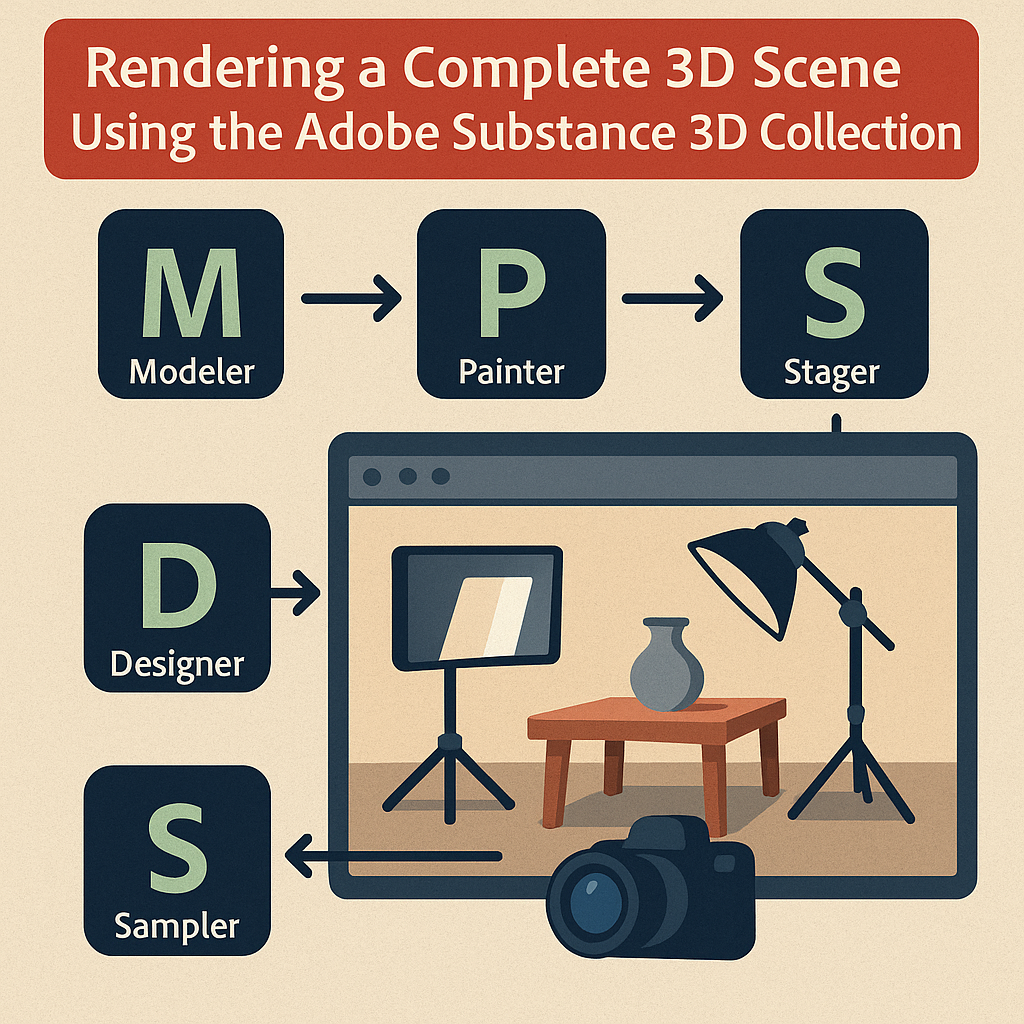
This guide walks you through every stage of creating and rendering a complete 3D scene using Substance 3D Modeler, Painter, Sampler, Designer, and Stager — the five key applications in Adobe’s 3D ecosystem.
👉 Start building your own 3D scenes with the Adobe Substance 3D Collection free trial — your all-in-one toolkit for modeling, texturing, lighting, and rendering.
🧱 Step 1: Start Modeling in Substance 3D Modeler
Every great 3D scene begins with a solid base model. Substance 3D Modeler makes this step easy with a hybrid workflow that lets you sculpt in both VR and desktop mode.
How to Begin
- Open Substance 3D Modeler and create a new project.
- Use the Clay Tool to block out primary shapes (walls, furniture, props).
- Switch between VR and desktop to refine geometry comfortably.
- Use Trim and Smooth Tools for clean surfaces and edges.
💡 Pro Tip: Keep your model’s polycount manageable — Stager handles low to mid-poly assets efficiently, and fine detail can be added later with normal maps from Painter or Designer.
🧩 Step 2: Generate Base Materials in Substance 3D Sampler
Next, create or import the materials that will define your scene’s realism. Substance 3D Sampler lets you turn photos into seamless PBR materials or blend multiple textures into unique composites.
How to Build a Material
- Import a base photo texture (e.g., wood, concrete, or fabric).
- Enable Image to Material (AI) to automatically generate maps (Base Color, Normal, Roughness, Height).
- Adjust Lighting and Relief parameters to refine realism.
- Export as
.sbsaror.pngtexture set for Painter or Stager.
🎯 Workflow Example: Create a photorealistic floor by blending concrete and tile materials, then export the .sbsar file for Painter.
🎨 Step 3: Texture and Paint in Substance 3D Painter
Now it’s time to add life to your models with detailed materials and paint layers.
In Painter:
- Import your model from Modeler (
File → New → Select Mesh). - Bake mesh maps (Ambient Occlusion, Curvature, Normal).
- Apply your materials from Sampler or the Substance Assets Library.
- Use Smart Materials to add procedural wear, dirt, or aging.
- Paint directly onto the 3D surface using brush tools.
💡 Pro Tip: Use Anchor Points to link procedural masks across multiple layers — perfect for complex materials like rusted metal or weathered stone.
🧮 Step 4: Create Procedural Assets in Substance 3D Designer
If your scene needs unique surfaces or repeating patterns (like tiles, bricks, or foliage), build them procedurally in Substance 3D Designer.
Key Workflow:
- Start a new graph in Designer.
- Add Noise, Blend, and FX-Map Nodes to build base textures.
- Adjust pattern repetition and randomization parameters.
- Output PBR maps (Base Color, Normal, Roughness, Height).
- Save as
.sbsarand import into Painter or Stager.
🎯 Pro Tip: Designer is ideal for creating tileable environment textures like brick walls, asphalt, or cloth — ensuring seamless scaling inside large 3D scenes.
💡 Step 5: Assemble and Light the Scene in Substance 3D Stager
Once your assets are ready, bring everything together in Substance 3D Stager — Adobe’s rendering and composition environment.
Building the Scene:
- Open Stager and create a new project.
- Import your textured models (
File → Import → Model). - Snap them into position using Align and Distribute tools.
- Add props or placeholders from the Stager Asset Library.
Setting the Lighting:
- Use Environment Lighting (HDRI) for realistic ambient illumination.
- Add Spotlights or Area Lights to highlight key areas.
- Adjust light intensity and rotation for cinematic contrast.
💡 Pro Tip: Start with an HDRI base light and layer in 2–3 spotlights to enhance product focus and shape definition.
🎥 Step 6: Frame the Shot with Camera Tools
Now that your scene is assembled, it’s time to capture it.
- Open the Camera Panel in Stager.
- Choose a Field of View (FOV) between 35°–55° for realism.
- Enable Depth of Field for a professional, photographic look.
- Save multiple camera views (wide, close-up, detail shots).
🎯 Workflow Example: For a product showcase, create one hero camera for the main render and several alternate angles for client review.
🧰 Step 7: Fine-Tune Reflections, Shadows, and Materials
Small adjustments make big differences in realism.
- Enable Soft Shadows under each light’s properties.
- Adjust Roughness to balance specular reflections.
- Use Reflection Planes to simulate glossy studio surfaces.
- Check for any floating objects or intersecting geometry.
💡 Pro Tip: Increase your render preview samples to ensure accurate reflections and shadow softness before final output.
🖼️ Step 8: Render the Final Image
Now it’s time to produce your finished image.
- Switch to the Render Tab.
- Select Path Tracing for maximum realism.
- Adjust render quality:
- Resolution: 1920×1080 (web) or 3840×2160 (print).
- Samples: 256–512 for noise-free results.
- Output Format: PSD or PNG.
- Enable Ground Shadows, Global Illumination, and Reflections.
- Click Render Image.
🎯 Pro Tip: Save your render as a .PSD to edit lighting, contrast, or logos later in Adobe Photoshop.
🧩 Step 9: Post-Processing in Photoshop
Even the best renders benefit from a finishing touch.
In Photoshop:
- Adjust Exposure, Levels, and Color Balance.
- Add Bloom or Lens Flare effects for depth.
- Apply a Vignette to guide the viewer’s eye.
- Overlay branding or text if needed.
💡 Workflow Tip: Keep all adjustments as non-destructive layers for easy revisions.
✅ Conclusion
The Adobe Substance 3D Collection provides a complete, professional-grade workflow — from 3D modeling in Modeler to texturing in Painter and Sampler, procedural generation in Designer, and final rendering in Stager. Each tool is tightly integrated, letting you move seamlessly from creative concept to marketing-ready render.
👉 Try the Adobe Substance 3D Collection free trial and start rendering complete 3D scenes that look every bit as real as they feel.
 SurfaceMentor