When you move beyond basic nodes in Adobe Substance 3D Designer, one of the most powerful tools you’ll encounter is the FX-Map node. It’s a procedural powerhouse that allows you to create complex, customizable patterns — everything from tile floors to alien surfaces — with full mathematical control.
Unlike standard generators, FX-Maps give you algorithmic flexibility, meaning you can define how shapes are distributed, rotated, and colored procedurally — not manually.
In this tutorial, we’ll explore how FX-Maps work, how to build your first custom pattern, and how to use them for advanced material creation.
👉 Follow along with a free trial of the Adobe Substance 3D Collection and start mastering procedural pattern design in Designer.
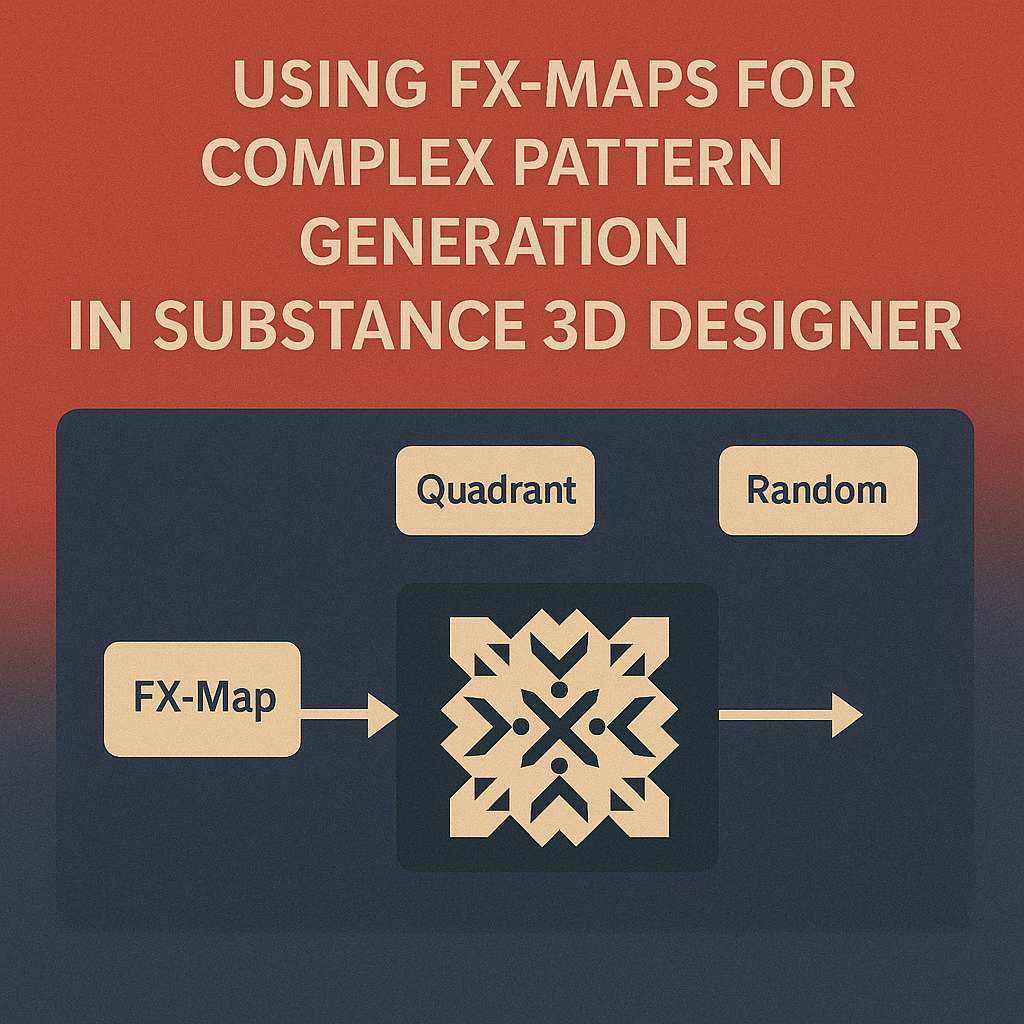
🧠 What Is an FX-Map?
An FX-Map is a special node in Substance 3D Designer that uses a mini-script system to control how images or shapes are scattered across a texture.
Think of it as a programmable pattern generator — instead of stacking shapes manually, you use mathematical rules to determine:
- Position (where each shape appears)
- Rotation (how each instance is turned)
- Color or grayscale variation
- Scale and randomness
The results are infinitely customizable — and, most importantly, tileable and procedural.
⚙️ Step 1: Create a New Graph and Add an FX-Map Node
- Open Adobe Substance 3D Designer.
- Go to File → New Substance Graph and select Physically Based (Metallic/Roughness).
- Right-click in the graph → Add Node → FX-Map.
- Connect its output to a Base Color or Height Map to preview the results in 2D or 3D view.
💡 Tip: The FX-Map node looks simple from the outside — but double-click it to enter the FX-Map Editor, where the real magic happens.
🧩 Step 2: Understand the FX-Map Structure
Inside the FX-Map Editor, you’ll see a Quadrant Tree, which defines how your pattern is built.
- Root Quadrant: The main container for the map.
- Child Quadrants: Each child defines a shape placement rule.
- Loop or Iterate Nodes: These repeat shapes across the texture.
Each quadrant can contain instructions that define random rotation, scaling, or positioning.
🎨 Pro Tip: The FX-Map system is procedural, so even small changes ripple through the entire output — always preview as you adjust.
🧱 Step 3: Generate a Simple Pattern (Grid Example)
Let’s start with something familiar — a tile grid.
- In the FX-Map Editor, right-click and choose Add → Quadrant.
- Inside the new Quadrant, right-click → Add → Iterate.
- Set the Iterations X/Y (for example, 8 × 8).
- Add a Shape → Square node to define your pattern element.
- In the Parameters, control:
- Position Function →
(X, Y)grid layout - Rotation Function →
random(0, 360) - Scale Function →
1(or userandom(0.8, 1.2)for variation)
- Position Function →
You’ve now generated your first fully procedural tiled pattern!
💡 Workflow Tip: Increase iterations or vary scale to turn it into cobblestone, brick, or mosaic patterns.
🧩 Step 4: Add Randomization and Variation
To make your pattern more natural:
- Add Random Rotation using
random(0, 1)multiplied by360. - For color variation, add a Color → Uniform Color input and randomize its brightness:
color(random(0.6, 1.0)) - Use the Random Seed slider in the FX-Map node’s properties to instantly generate new versions of your pattern.
🎯 Pro Tip: Random functions make each instance unique, but still procedurally controlled — perfect for non-repetitive materials.
🌿 Step 5: Combine Shapes and Layers
FX-Maps can mix multiple pattern types for advanced designs.
- Add a second Quadrant to your FX-Map.
- Insert a different shape — e.g., Circle, Brick, or Custom Input Image.
- Blend layers by adjusting Opacity and Offset.
- Use Conditional Functions to define rules, like:
if(random(0,1) > 0.5, brick(), circle())
💡 Workflow Tip: This is where FX-Maps shine — they let you combine logic and art to build complex procedural distributions.
🔗 Step 6: Use Your FX-Map as a Generator
Once your FX-Map looks right, you can turn it into a reusable pattern node.
- Right-click the FX-Map node → Create Function Graph.
- Save it as a new node preset (e.g., Procedural Tiles Generator).
- Use it in future graphs as a base for height, normal, or color maps.
🎨 Pro Tip: Many of Designer’s built-in noises and grunge maps are actually FX-Maps — studying them is a great way to learn advanced techniques.
🧠 Step 7: Apply Filters and Outputs
- Pass your FX-Map through a Levels node to control contrast.
- Connect it to:
- Height → for surface definition
- Normal → via Normal Map node
- Roughness → for reflection control
- Export your texture as part of a full PBR material.
💡 Bonus: You can even combine FX-Map outputs with other procedural layers — like Slope Blur or Warp — for organic realism.
✅ Conclusion
FX-Maps are one of the most advanced tools in Adobe Substance 3D Designer, blending code-like control with visual creativity. Once you understand how loops, quadrants, and random functions interact, you can build anything — from floor tiles to alien structures — entirely procedurally.
👉 Unlock the full power of procedural design with the Adobe Substance 3D Collection free trial and start generating your own complex materials today.
 SurfaceMentor