Introduction
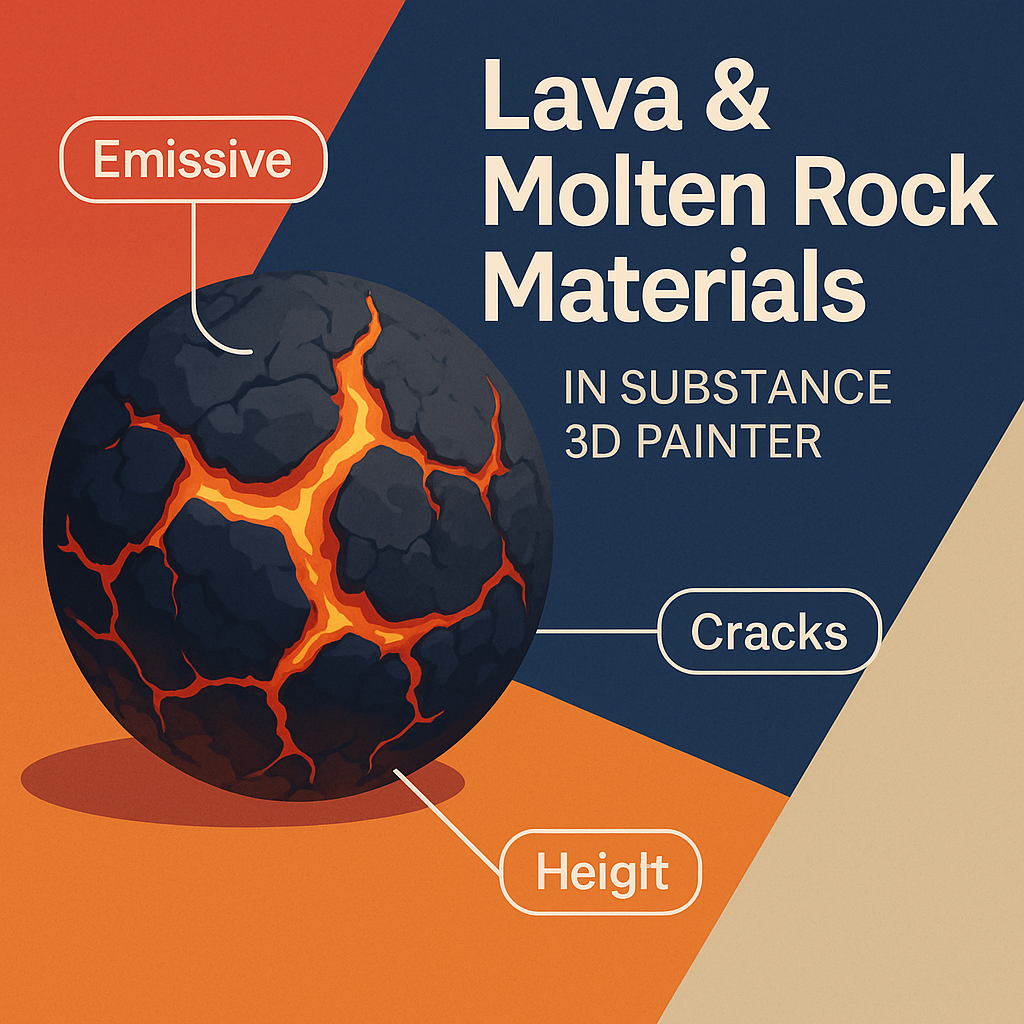
Few materials capture visual drama like lava and molten rock. The contrast between glowing magma and dark, cracked crust creates a powerful combination of light, texture, and motion. In Adobe Substance 3D Painter, you can bring this dynamic energy to your 3D models using emissive maps, height variation, and procedural masks.
This tutorial will guide you step by step through building a glowing lava material that looks hot, cracked, and alive.
👉 Follow along with a free trial of the Adobe Substance 3D Collection and start creating cinematic surface effects with Substance 3D Painter.
🧱 Step 1: Create a Base Rock Layer
- Open your model in Substance 3D Painter.
- Apply a Smart Material like Rock Lava, Basalt, or Stone Rough.
- Reduce Roughness to 0.6–0.8 for a slightly matte volcanic rock finish.
- Add subtle height noise using a Grunge Dirt Rock texture.
💡 Tip: Keep your base neutral and dark — it should represent the cooled, crusted exterior of the lava.
🔥 Step 2: Add the Molten Core Layer
- Create a new Fill Layer and rename it “Lava Core.”
- Disable Metallic, enable Base Color, Height, Roughness, and Emissive.
- Pick a bright orange-to-yellow gradient for Base Color.
- Set Roughness to 0.1–0.3 for glossy, liquid-like reflection.
- Increase Emissive Intensity to make the layer glow.
🎯 Pro Tip: Use a Gradient Map filter to make your molten layer transition smoothly from bright yellow (center) to deep orange (edges).
⚙️ Step 3: Mask the Lava Cracks
- Right-click your Lava Core layer → Add Black Mask.
- Add a Generator → Cracks or Cellular Noise.
- Adjust:
- Balance → defines how much lava is visible.
- Contrast → sharpens cracks.
- Grunge Amount → adds randomness.
- Invert the mask if needed to show glowing cracks beneath dark rock.
💡 Workflow Tip: Experiment with Clouds 3 or Perlin Noise generators to break up uniform crack lines.
🧩 Step 4: Blend the Layers
To merge rock and lava visually:
- Add a Blur Filter to your mask for smooth heat transitions.
- Use Levels Filter to adjust glow boundaries.
- Slightly darken the surrounding rock edges with a Color Correction Filter to simulate burnt crust.
🎨 Pro Tip: Add a Subtle Glow Filter to the emissive channel for cinematic lighting effects.
🌋 Step 5: Add Heat Distortion and Color Variation
- Create a new Fill Layer above all others.
- Enable Base Color and Height only.
- Add a Grunge Heat Distortion texture as the mask.
- Set Height to +0.02 and slightly vary the color using a Hue Shift Filter.
🧠 Workflow Tip: Heat distortion adds energy and realism — perfect for animations or close-up renders.
💡 Step 6: Preview Under Dynamic Lighting
- Go to Display Settings → Environment Map → Warm Studio Light or Volcanic HDRI.
- Lower Environment Exposure to make emissive glow stand out.
- Enable Tone Mapping (ACES) and adjust Bloom for subtle glow diffusion.
💡 Bonus: Animate the emissive intensity in rendering software for pulsing lava effects.
💾 Step 7: Export Your Lava Material
- Go to File → Export Textures.
- Use the PBR Metallic Roughness + Emissive preset.
- Export at 4K resolution for cinematic scenes.
Your material is now ready for Blender, Unreal Engine, or Adobe Stager, glowing with fiery realism.
✅ Conclusion
Lava materials combine color, light, and form into one of the most visually stunning 3D textures. In Adobe Substance 3D Painter, emissive maps and procedural masks give you full control over molten intensity, glow, and crust detail.
👉 Try it now with the Adobe Substance 3D Collection free trial and bring volcanic power to your renders.
 SurfaceMentor