What if you could take any photograph — a wall, floor, fabric, or rock — and instantly transform it into a seamless, realistic 3D material? That’s exactly what Adobe Substance 3D Sampler’s AI-powered Image-to-Material feature does.
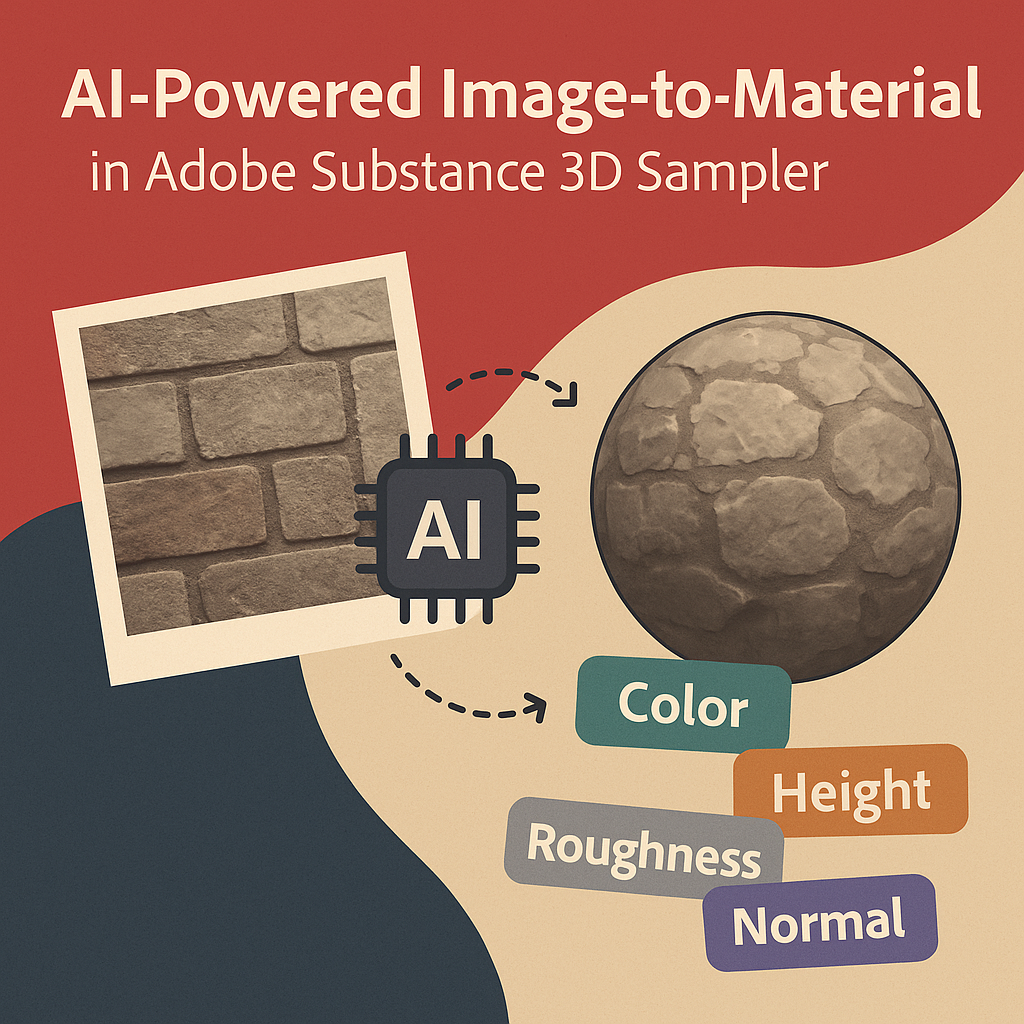
Powered by Adobe Sensei, this tool automatically analyzes your image, extracts material data, and generates all the maps needed for physically based rendering (PBR): color, height, roughness, normal, and ambient occlusion.
👉 You can try this powerful AI feature with the Adobe Substance 3D Collection free trial — which includes Sampler, Designer, Painter, and Stager.
🧠 What Is the AI Image-to-Material Feature?
The Image-to-Material (AI-powered) feature in Substance 3D Sampler allows you to convert a 2D photo into a fully functional PBR material with minimal manual work.
Here’s what the AI does automatically:
- Detects lighting and removes shadows.
- Generates Base Color, Height, Normal, Roughness, and AO maps.
- Creates seamless edges for tiling.
- Interprets depth and texture patterns for 3D realism.
💡 Think of it as your personal material lab assistant — trained to turn flat photos into rich 3D textures.
📸 Step 1: Choose or Capture Your Source Image
Start with a high-quality photo of a surface you want to turn into a material.
Best practices for capturing your image:
- Use soft, even lighting (avoid strong shadows).
- Shoot straight-on to the surface — no perspective skew.
- Avoid reflections or gloss unless they’re part of the texture.
- Capture a flat, texture-rich surface (wood, stone, fabric, soil, etc.).
- Aim for 2048×2048 resolution or higher.
🎯 Pro Tip: The more texture detail your photo contains, the better the AI can extract accurate height and roughness data.
🧱 Step 2: Import the Image into Substance 3D Sampler
- Open Adobe Substance 3D Sampler.
- Drag and drop your image into the workspace.
- Select “Image to Material (AI-Powered)” from the import dialog.
- Sampler immediately begins analyzing and processing the image.
Within seconds, the AI creates a full material graph containing:
- Base Color
- Height Map
- Normal Map
- Roughness Map
- Ambient Occlusion
💡 You’ll see a 3D preview of your surface on a sphere, plane, or custom model instantly.
🪄 Step 3: Review and Refine the AI-Generated Material
The AI output gives you a strong starting point, but small tweaks can perfect the result.
- Base Color:
- Use the Color Equalizer filter to remove uneven lighting.
- Adjust brightness and saturation for realism.
- Height Map:
- Increase or decrease intensity depending on how rough or flat the surface should appear.
- Roughness Map:
- Fine-tune surface reflection — matte for stone, glossy for plastic or wet mud.
- Normal Map:
- Adjust the strength slider to emphasize or soften depth details.
🎯 Pro Tip: Use the Split View (2D/3D) mode to see how your adjustments affect both flat and rendered perspectives simultaneously.
🔁 Step 4: Make the Material Seamless
AI can stitch edges, but it’s always worth refining manually:
- Click Make it Tile in the right-hand menu.
- Sampler’s algorithm automatically removes visible seams.
- Use the Clone Tool or Healing Brush to fix repetitive spots.
- Rotate or scale the 3D preview to confirm smooth tiling.
💡 Workflow Tip: A seamless material ensures perfect results when repeated across large surfaces like walls or floors.
🧩 Step 5: Enhance with Filters and Layers
Once your base material is ready, add realism or stylization with filters:
- Warp Filter: Adds natural unevenness to flat textures.
- Grunge Map Overlay: Introduces subtle dirt or aging.
- Edge Wear: Simulates chipped paint or worn surfaces.
- Dust and Scratches: Adds micro imperfections for realism.
- Color Gradient: Tints or stylizes the material for variation.
🎨 Pro Tip: Stack filters as non-destructive layers — each can be toggled or adjusted later.
🧱 Step 6: Combine Multiple Photos for Hybrid Materials (Optional)
To push creativity further, you can blend multiple AI-generated materials:
- Add another Image-to-Material layer (e.g., concrete + moss).
- Use Masks or Grunge Maps to blend them.
- Adjust Opacity and Blend Modes (Multiply, Overlay, Add) for balanced results.
💡 Example: Mix bark texture with rust for an organic, alien-like surface.
💾 Step 7: Export and Use Your Material Anywhere
Once you’re satisfied:
- Click Share → Export As → SBSAR File.
- Save your file as a Substance Archive (.SBSAR).
- You can now import it into:
- Substance 3D Painter (for texturing 3D models)
- Substance 3D Stager (for product rendering)
- Unreal Engine / Unity / Blender (for real-time visualization)
🎯 Pro Tip: If you plan to reuse your material, expose parameters like Roughness, Color Tint, or Height Intensity before export.
🧠 Step 8: Organize Your AI Material Library
Keep your creations ready for future use:
- Save AI-generated materials in labeled folders (e.g., “Stone,” “Fabric,” “Metal”).
- Add custom thumbnails and tags in Sampler.
- Sync to Creative Cloud Libraries for access across all Adobe apps.
💡 Workflow Tip: Naming conventions like “Brick_OldWall_AI” help track which materials were AI-generated and fine-tuned.
✅ Conclusion
The AI Image-to-Material feature in Adobe Substance 3D Sampler is one of the fastest and most accurate ways to transform reality into digital assets. Whether you’re building game environments, product renders, or architectural scenes, this feature saves hours of manual map creation — letting you focus purely on creative control.
👉 Try the Adobe Substance 3D Collection free trial and experience how Adobe’s AI tools make 3D material creation faster, smarter, and more intuitive.
 SurfaceMentor