Brick and concrete are the backbone of architectural visualization and environment design. In Adobe Substance 3D Painter, you can craft materials that feel tactile and weathered — complete with cracks, stains, and subtle color variation.
This tutorial will guide you through building realistic brick and concrete textures step by step, using procedural masks and height maps to achieve depth and authenticity.
👉 Follow along with a free trial of the Adobe Substance 3D Collection and learn to create photoreal building materials for 3D projects.
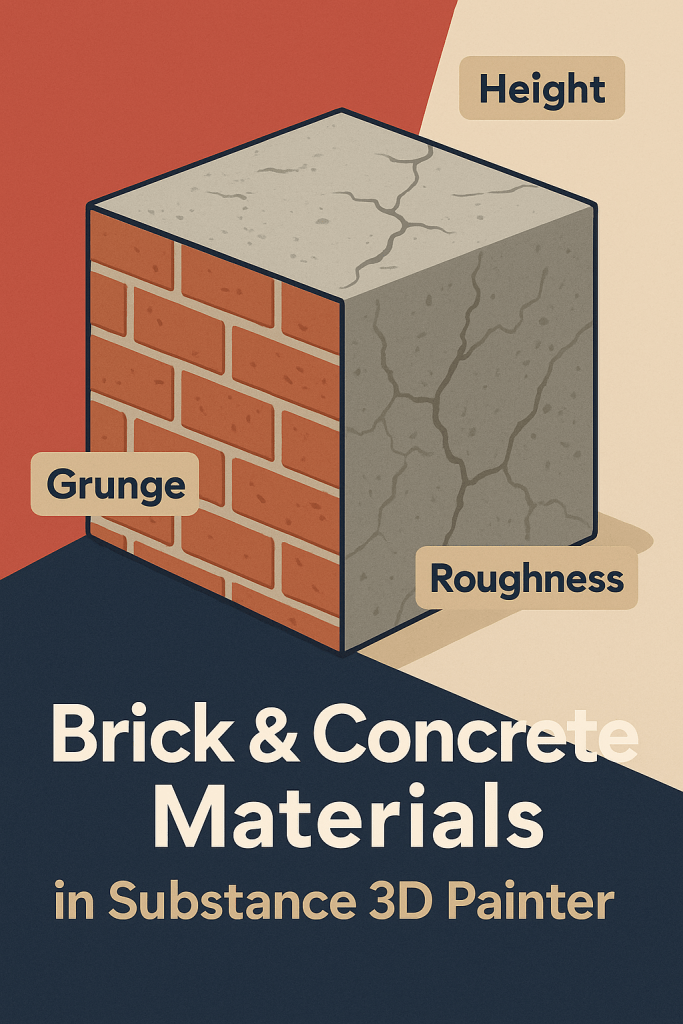
🧱 Step 1: Set Up the Brick or Concrete Base
- Import your 3D model into Substance 3D Painter.
- Apply a Smart Material like Brick Old, Concrete Dirty, or Stone Wall.
- Adjust the Base Color for your desired hue — red-orange for brick, gray for concrete.
- Modify Roughness (0.6–0.9) for surface texture realism.
💡 Tip: Use normal or height variation for uneven surfaces — perfect for adding tactile realism to walls or floors.
⚙️ Step 2: Add a Procedural Grout Layer
- Add a new Fill Layer below your brick color layer.
- Disable Metallic, enable Color, Height, and Roughness.
- Pick a light gray tone for the grout.
- Add a Black Mask → Add Fill → Brick Pattern or Grunge Concrete Lines.
- Invert the mask if necessary so grout fills the gaps.
🎯 Pro Tip: Lower Height on the grout layer to make it slightly recessed below the bricks.
🧩 Step 3: Add Surface Imperfections
- Add a Fill Layer with Roughness and Height enabled only.
- Use a Grunge Dirt Scratches, Concrete Rough, or Brick Chips texture as a mask.
- Set Height = +0.03 for bumps and chips.
- Adjust Roughness variation to enhance realism under light.
💡 Workflow Tip: Layer multiple grunge textures at low opacity to avoid repetition.
🪣 Step 4: Add Weathering and Stains
- Create a new Fill Layer and name it “Weathering.”
- Choose a dark brown or greenish tone for Base Color (for dirt or moss).
- Add a Black Mask → Generator → Dirt.
- Adjust:
- Grunge Amount for stain coverage
- AO Influence to control buildup in recesses
- Contrast to sharpen stain edges
🎨 Pro Tip: Add another paint layer to manually darken water streaks or rust marks.
💡 Step 5: Add Cracks and Edge Damage
- Add a Height-only Fill Layer.
- Apply a Grunge Cracks or Concrete Damage procedural mask.
- Set Height = -0.03 for indentations.
- Use a Blur Filter to blend edges.
💡 Pro Tip: Combine this with a Curvature Map for cracks that naturally follow surface contours.
🔦 Step 6: Lighting and Material Preview
- Go to Display Settings → Environment Map → Overcast or Studio HDRI.
- Rotate the light to test how roughness and height respond to shadows.
- Enable Tone Mapping (ACES) for realistic contrast.
🎯 Pro Tip: Lower HDRI exposure slightly to make stains and cracks more visible.
💾 Step 7: Export for Rendering
- Go to File → Export Textures.
- Use the PBR Metallic Roughness preset.
- Export at 4K resolution for high-quality realism.
Your brick or concrete material is now ready for use in Blender, Unreal Engine, or Adobe Stager.
✅ Conclusion
From aged concrete to freshly laid brick, every surface tells a story. Adobe Substance 3D Painter gives you the tools to create depth, imperfection, and realism — essential for architectural and environmental rendering.
👉 Start your journey with the Adobe Substance 3D Collection free trial and master the art of natural, textured surfaces.
 SurfaceMentor