Stone and marble materials bring sophistication and realism to architectural, interior, and product renders. With Adobe Substance 3D Painter, you can simulate the organic variation of natural stone — from smooth, polished marble to rough, porous rock — using Smart Materials, masks, and color blending techniques.
In this tutorial, you’ll learn how to create high-quality stone and marble materials that look authentic and tactile under any lighting condition.
👉 Get started with a free trial of the Adobe Substance 3D Collection and follow along step by step.
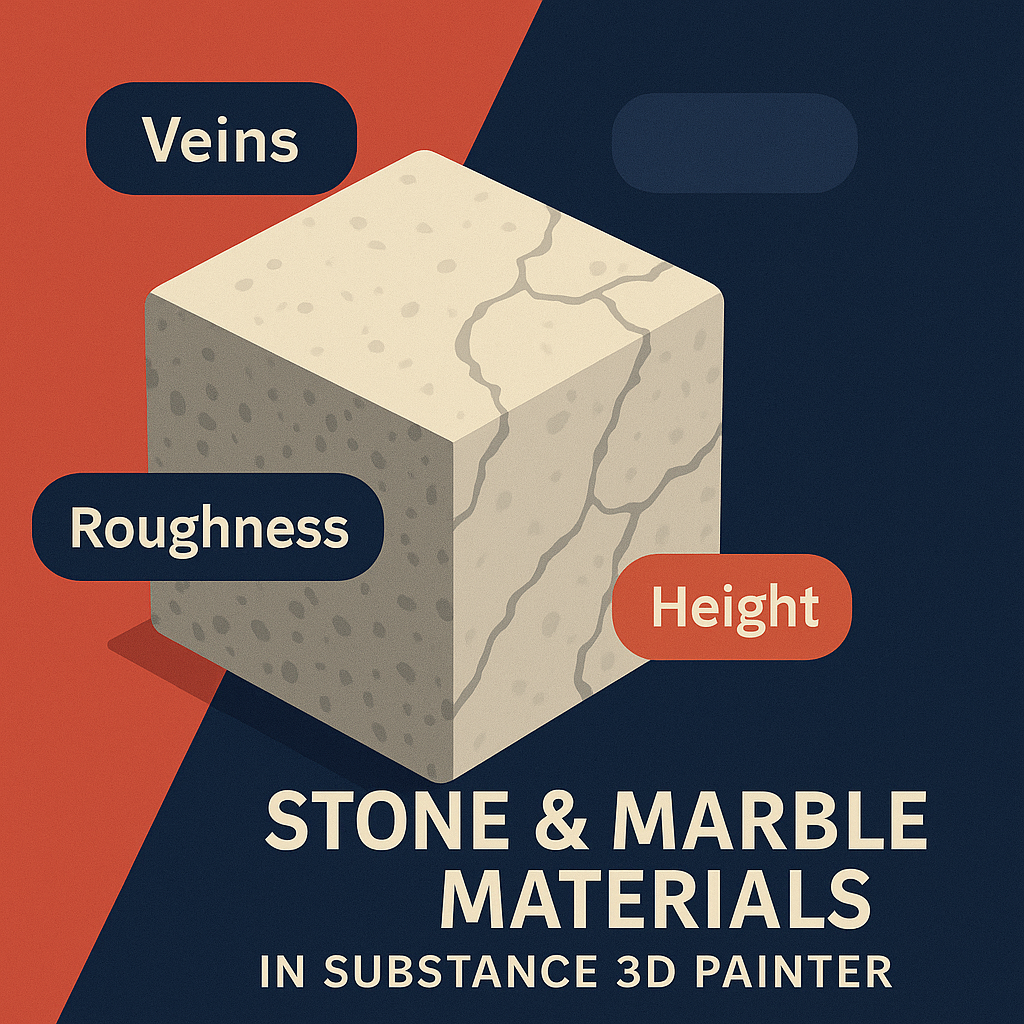
🧱 Step 1: Start with a Base Stone Layer
- Open your model in Substance 3D Painter.
- Apply a Smart Material such as Stone Rough, Concrete Polished, or Marble Clean.
- Adjust Base Color to match your desired tone — gray for granite, beige for limestone, white for marble.
- Increase Roughness (0.6–0.9) for matte stones or decrease it (0.2–0.4) for polished marble.
💡 Tip: Use Tri-Planar Projection for seamless results on irregular geometry.
⚙️ Step 2: Add Surface Variation
- Create a Fill Layer above your base material.
- Enable Color, Roughness, and Height.
- Mask it with a Grunge Marble Veins, Clouds 3, or Noise Fine texture.
- Adjust Balance and Contrast for natural vein intensity.
🎨 Pro Tip: Blend this layer using Overlay or Multiply mode to create realistic mineral depth.
🧩 Step 3: Add Veins and Natural Patterns
- Add another Fill Layer and rename it “Veins.”
- Choose a subtle contrasting Base Color (light gray or off-white).
- Mask it using Procedural → Marble Veins Large.
- Set Height = +0.02 for slightly raised veins or -0.02 for embedded lines.
💡 Tip: Adjust Blur to soften transitions and avoid overly sharp edges.
🪣 Step 4: Add Dirt and Weathering (Optional)
- For outdoor or aged stone, create a new Fill Layer with Color and Roughness enabled.
- Choose a dark brown or green tone for dirt or moss.
- Add a Black Mask → Generator → Dirt.
- Adjust AO Influence to make dirt settle naturally in crevices.
🎯 Pro Tip: Add subtle greenish tint in low areas for mossy, damp realism.
🌈 Step 5: Polish and Reflectivity (for Marble)
- Add a Roughness-only Fill Layer.
- Set Roughness = 0.1–0.25 to mimic polished marble gloss.
- Mask it using a Grunge Smudge or Fingerprint texture for slight imperfections.
- Lower Opacity for subtle microreflection control.
💡 Bonus: Use Color Correction Filter to adjust brightness and hue for natural variation between tiles or slabs.
🔦 Step 6: Lighting and Material Preview
- Go to Display Settings → Environment Map → Indoor Studio Light or Warm Neutral HDRI.
- Rotate lighting to test highlights and shadows.
- Enable Tone Mapping (ACES) for natural light behavior.
- Add Subtle Bloom to enhance polished stone realism.
🎨 Pro Tip: Use Depth of Field for macro-style closeups of veins or cracks.
💾 Step 7: Export Your Stone Material
- Go to File → Export Textures.
- Use the PBR Metallic Roughness template.
- Export at 4K for close-up scenes or 2K for general use.
Your marble or stone textures are now ready for use in Adobe Stager, Blender, or Unreal Engine.
✅ Conclusion
Stone and marble materials are all about balance — smooth reflections, organic detail, and subtle variation. With Adobe Substance 3D Painter, you can replicate natural minerals and polish effects with complete procedural control.
👉 Start building your next masterpiece with the Adobe Substance 3D Collection free trial and explore the artistry of realistic surfaces.
 SurfaceMentor